Display Room Features in Housekeeping Boards and Reports
Stay is enhanced to allow users to display the features associated with a room in the housekeeping staff assignment sheet that is printed and in reports. For example, if a room contains a mini-BAR, users can choose to display them. This would help the housekeeping staff on duty to carry out the housekeeping services accordingly.
The room features are displayed in the following screens and reports:
-
Housekeeping ➜ Print
-
Housekeeping ➜ Home ➜ Assigned Services ➜ Staff
-
Housekeeping ➜ Home ➜ Assigned Services ➜ Rooms
-
Housekeeping ➜ Assign ➜ Unassigned Service Requests and Assigned Service Requests
-
Housekeeping Supervisor Report (Legacy)
-
Housekeeping Check Off Report (Legacy)
-
Housekeeping Departures Report (Legacy and Dynamic)
Users can also filter the assigned service requests by features in Housekeeping Print.
To support this feature, the following changes have been made:
-
On the Room Presets tab, in the Room Setup screen, a new flag, Include in Housekeeping Prints/Reports, is added. When enabled, the room features are displayed on the mentioned screens and reports. If disabled, the housekeeping features for the room will not be displayed.
-
A new column, Housekeeping Print Reports, is added to the Room Presets tab in the Rooms Setup screen (Settings ➜ All Settings ➜ Rooms & Room Types ➜ Rooms Presets). This column displays values (Yes or No) depending on whether the Include in Housekeeping Prints/Reports flag is enabled or disabled.
-
When the Include in Housekeeping Prints/Reports flag is enabled, an accordion is displayed before each room number in the Assigned Services section in Housekeeping ➜ Print. On expanding the accordion, the room features are displayed. The accordion is not shown when the flag is disabled or when there are no features for the room in active status.
-
A new flag, Include Housekeeping Features, is added to the Print Preview screen in Housekeeping ➜ Print. When enabled, the features are displayed below each room when the staff assignment sheet is printed for the staff or property. Only the features with the Include in Housekeeping Prints/Reports flag enabled are displayed.
-
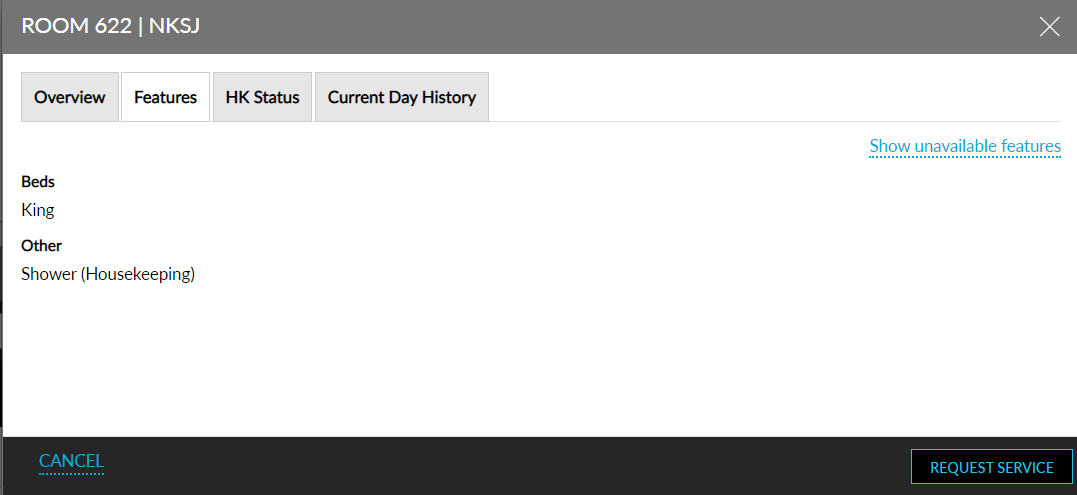
A hyperlink is added for the room number in the Staff tab of the Assigned Services section in the Housekeeping Home screen (Housekeeping ➜ Home ➜ Assigned Services ➜ Staff). When users click the room number hyperlink in the Staff tab or the Rooms tab, the features with the Include in Housekeeping Prints/Reports flag enabled are displayed in the Room screen, suffixed by (Housekeeping).
-
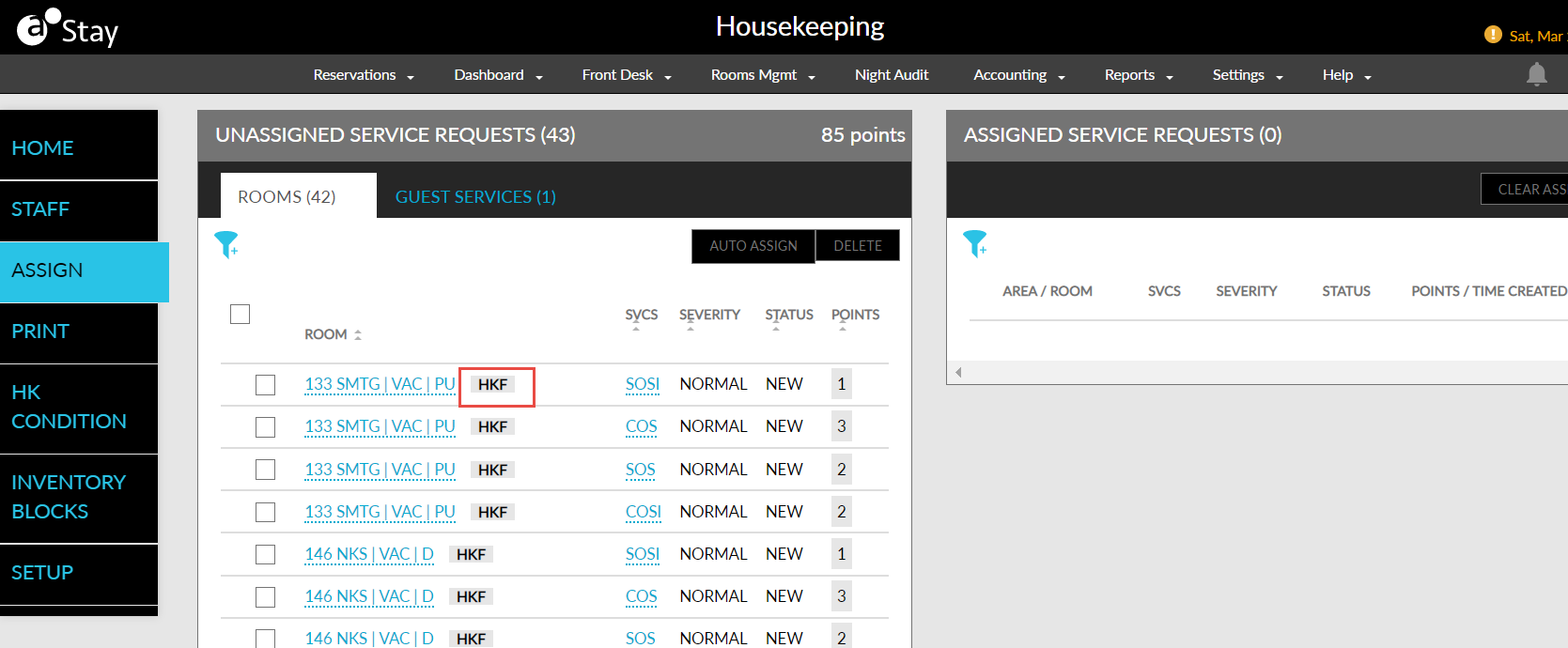
Rooms with features associated are indicated using a HKF (Housekeeping Features) indicator in the following screens:
-
Housekeeping ➜ Home ➜ Assigned Services ➜ Staff and Rooms
-
Housekeeping ➜ Print
-
Housekeeping ➜ Assign ➜ Unassigned Service Requests and Assigned Service Requests
-
-
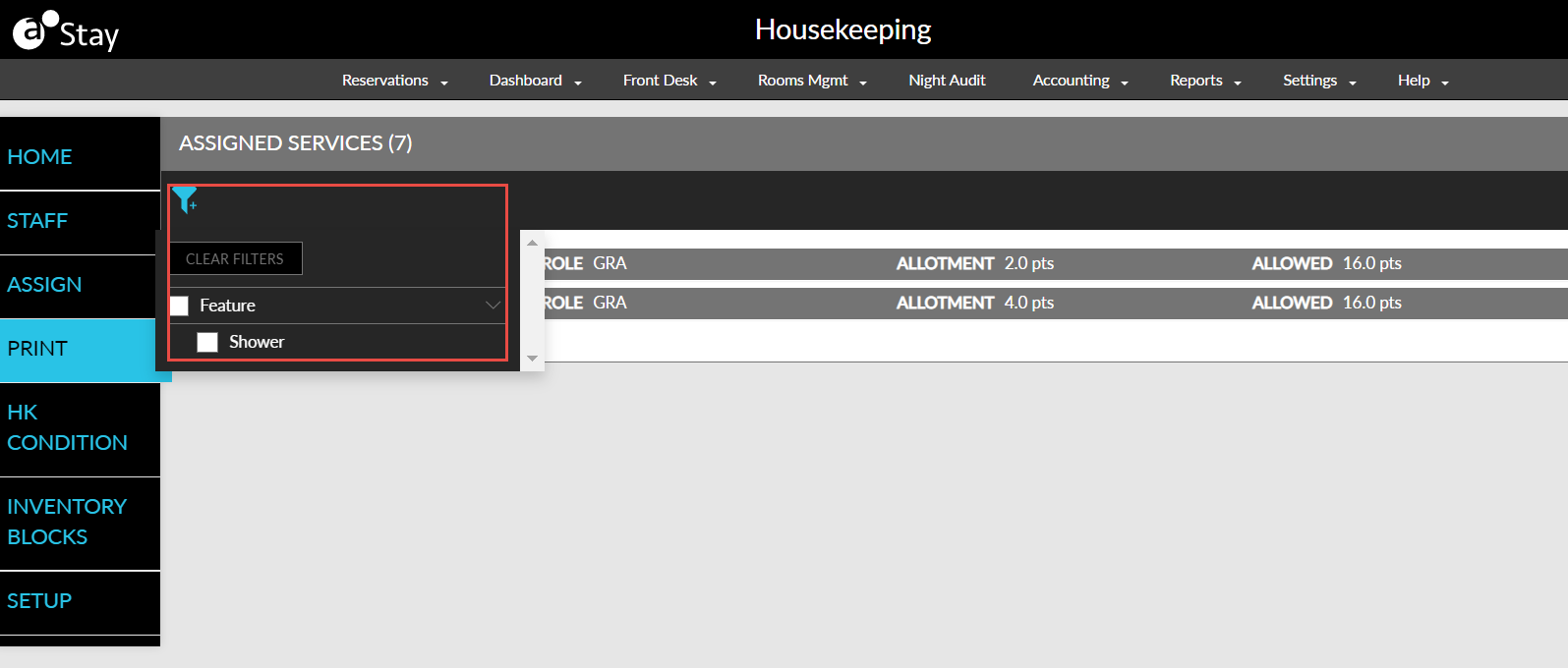
A new filter option, Features, is added to Housekeeping ➜ Print. When selected, only the service requests for rooms with the selected features will be displayed.
-
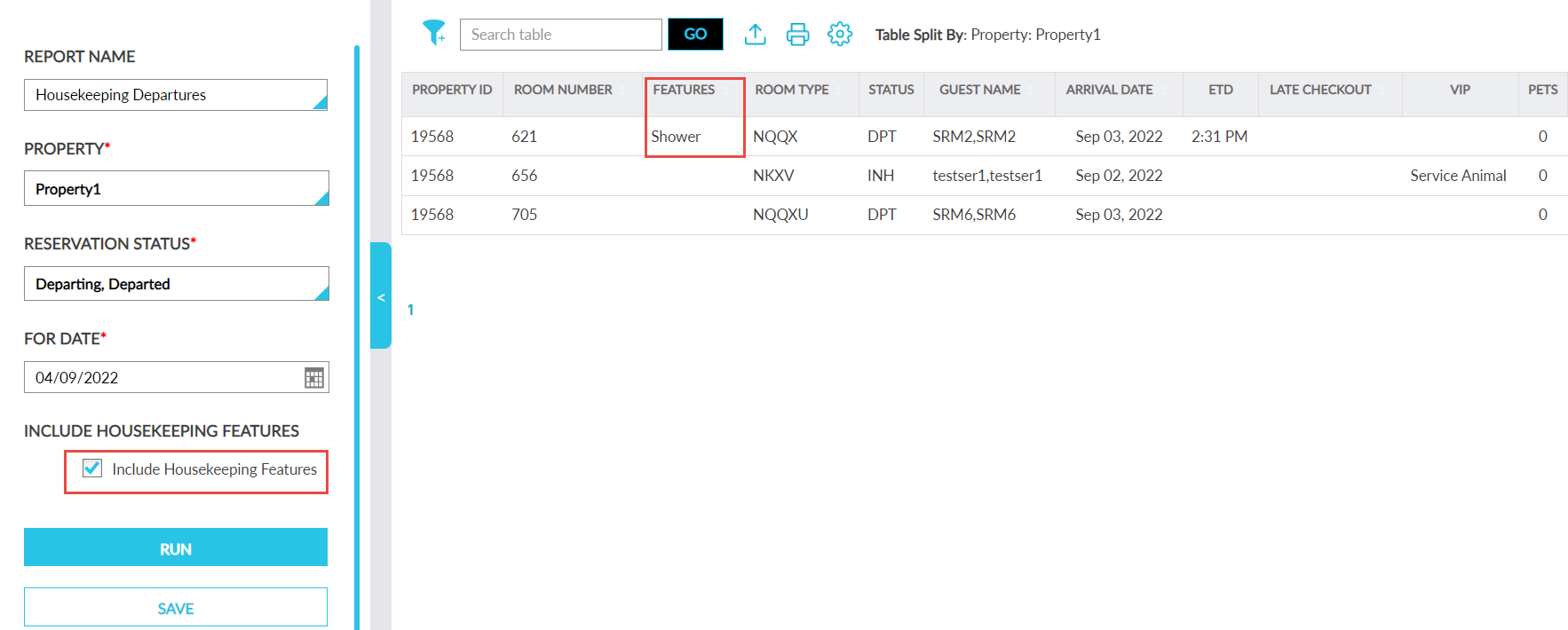
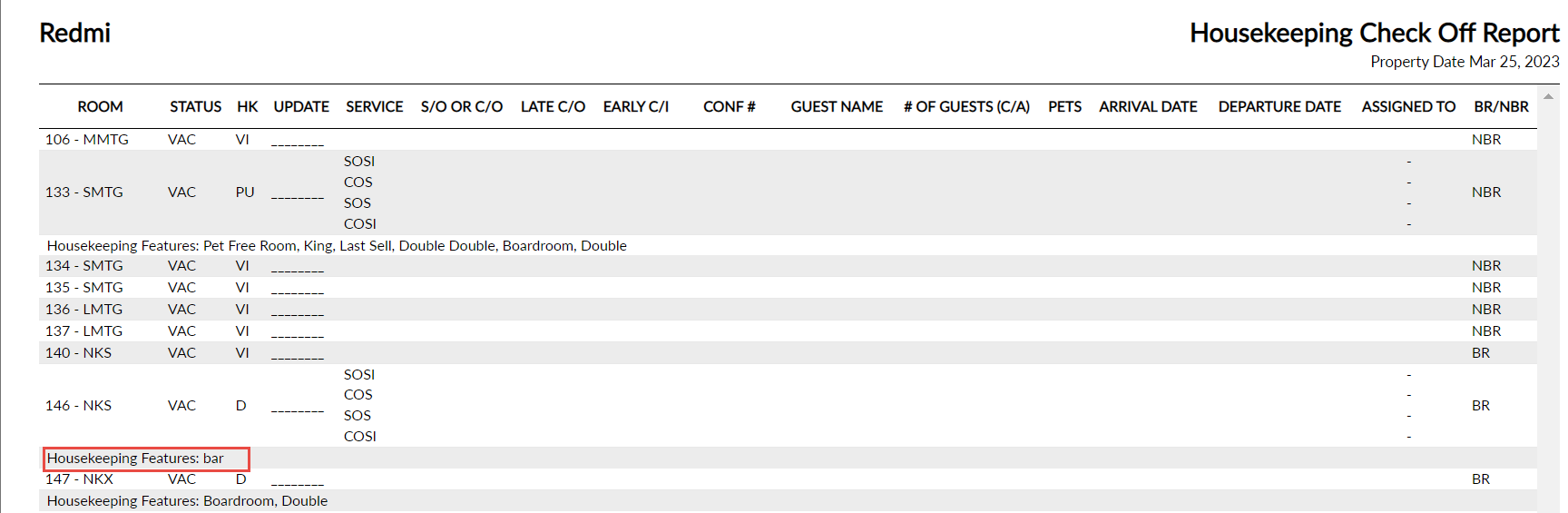
A new checkbox, Include Housekeeping Features, is added as a report generation parameter in the following legacy reports: Housekeeping Supervisor, Housekeeping Departures and Housekeeping Checkoff reports. When users enable this checkbox and generate the report, the features are displayed below each room.
-
The Include Housekeeping Features checkbox is also added to the Housekeeping Departures report (Dynamic) as a report generation parameter.
-
A new column, Features, is added to the Housekeeping Departures report (Dynamic). When the Include Housekeeping Features checkbox is enabled and the report is generated, the features available for the room are displayed in the Features column. This field is left blank if there are no features available for the room. The features are also displayed when the report is printed or exported.